
How to Replace a Local MS Access Database with a Cloud Solution
-
 Last updated: 05 October 2026
-
 Microsoft Access
 -
 Written by
Editorial Team
Written by
Editorial Team
A local Microsoft Access database works fine right up until it doesn’t. One day the host PC fails, or a remote hire cannot open the file without a VPN, or two people try to edit the same record and the database locks up. This guide walks through why businesses move Access off local machines, what the replacement actually looks like, and how to make the switch without losing a single form, report, or macro you have already built.
If you are reading this because something has already gone wrong, a corrupted file, a failed drive, a frustrated remote employee, you are not alone, and the fix is usually far simpler than it seems in the moment. If you are reading this proactively, trying to get ahead of a problem before it happens, that is an even better position to be in. Either way, the path forward does not involve throwing out years of work in Access and starting over somewhere else. It involves giving the database you already have a more reliable place to live.
Why Businesses Outgrow a Local Access Database
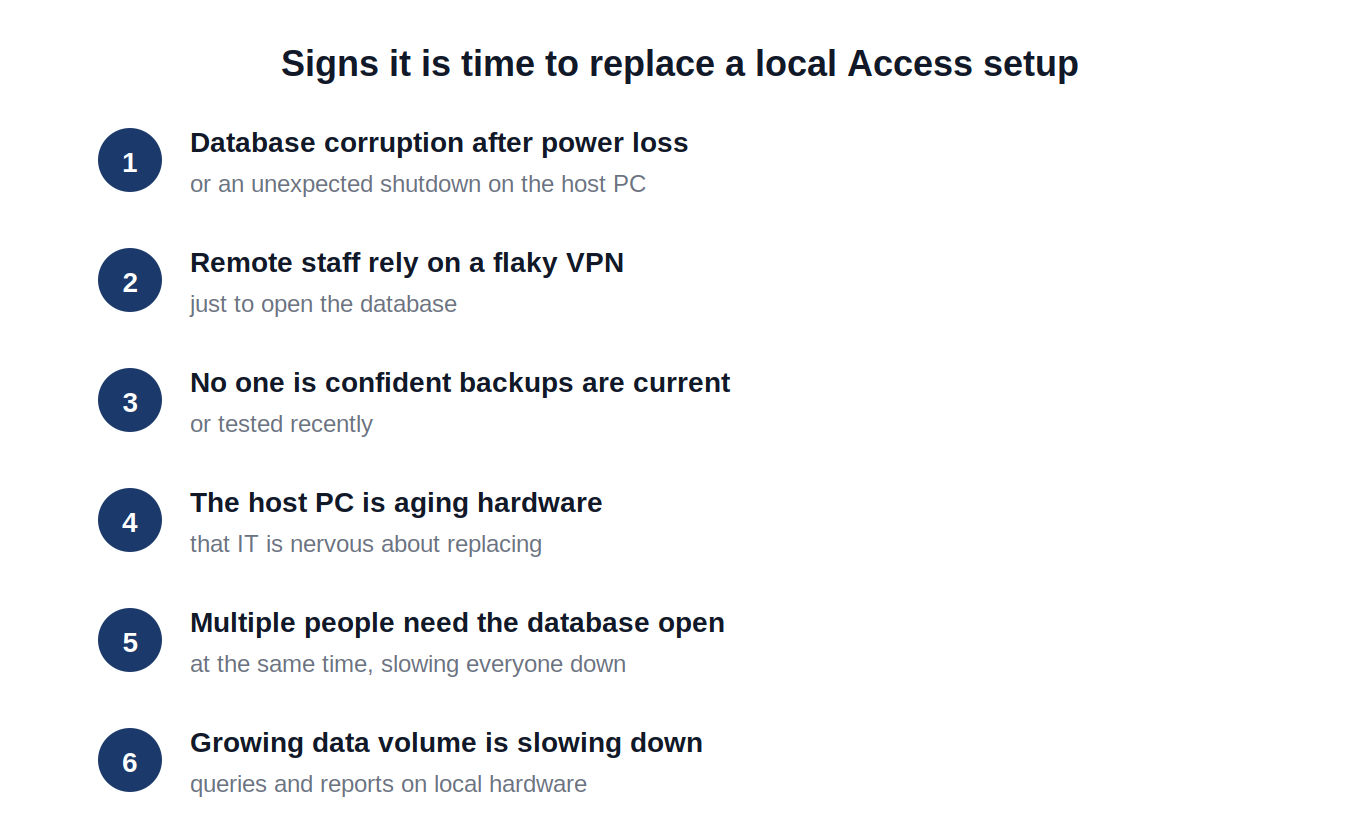
Microsoft Access was built with a single PC or small office network in mind, and for a huge number of businesses that is still exactly how it runs today, years after the database was first created. The problem is not that Access stops working. It is that the environment around it changes faster than the database does. Teams go remote. Staff count grows. The PC the database lives on ages out of warranty. None of this is a flaw in Access itself, but it does mean the local setup it was built on no longer matches how the business actually operates.
This mismatch shows up in a few predictable ways. A new hire working from home cannot get into the database without IT setting up VPN access, which is often slower and less reliable than anyone would like. A shared drive that multiple people depend on goes down along with the office internet. A backup that was supposed to run every night turns out to have silently failed for the last three months. None of these are hypothetical. They are the specific reasons most businesses start looking for a way to replace a local Access setup rather than continuing to patch around it.
What Does It Mean to Replace a Local Access Database?
This phrase causes some confusion, so it is worth being precise about what it does and does not mean. Replacing a local Access database does not mean replacing Microsoft Access as a product, and it does not mean rebuilding your forms, reports, and macros in a different platform. For the overwhelming majority of businesses, that is the wrong solution to the wrong problem.
What it actually means is replacing the infrastructure the database runs on. Instead of living on a single office PC or an aging on-premises server, the exact same Access database, with the exact same .accdb or .mdb file, moves to a managed cloud desktop. The Access application itself, the forms, the VBA code, the relationships between tables, none of it changes. What changes is where it physically runs and how people reach it.
This is a meaningfully different undertaking than migrating to a new database platform. A platform migration means redesigning the application. Moving to cloud hosted Access means keeping the application exactly as it is and giving it better infrastructure to run on.
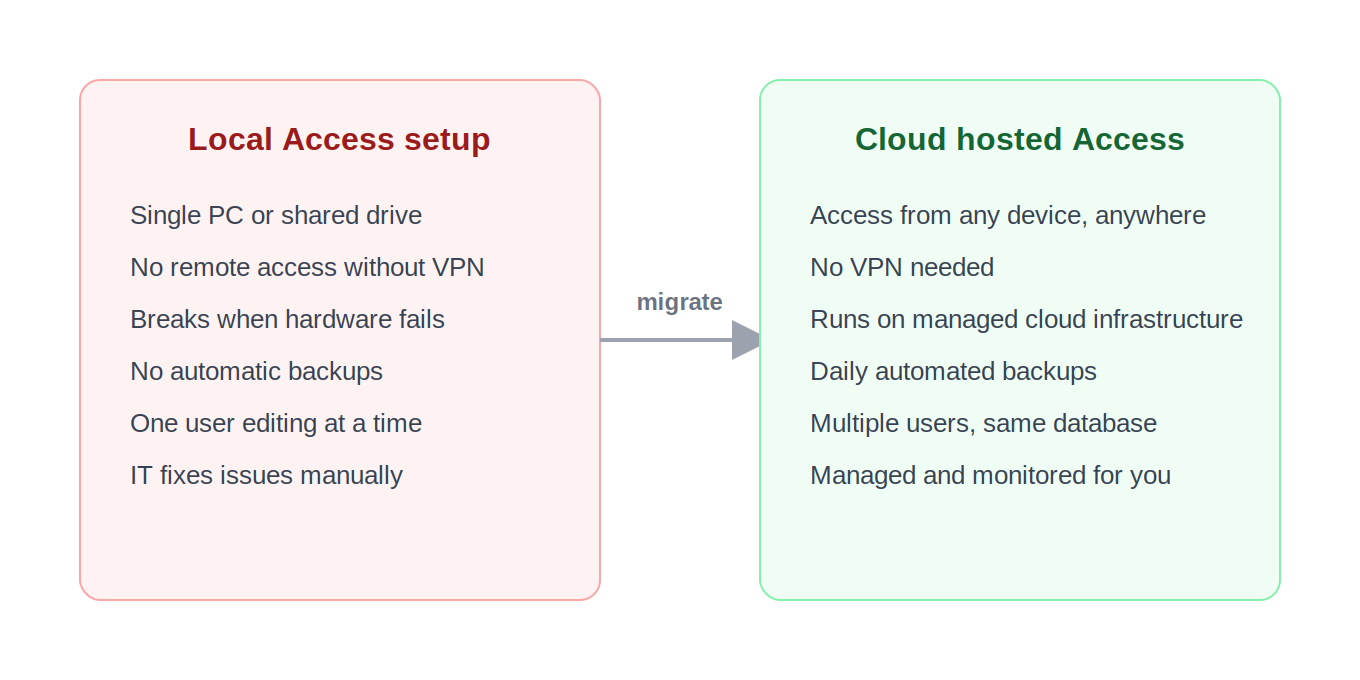
Local Access vs. Cloud Hosted Access
| Factor | Local Access Setup | Cloud Hosted Access |
|---|---|---|
| Remote access | Usually requires VPN, often unreliable | Browser or remote desktop, from any device |
| Hardware dependency | Tied to one PC or local server | Runs on managed cloud infrastructure |
| Backups | Often manual or inconsistently scheduled | Automated, typically daily |
| Multi-user access | Limited by local network and hardware | Shared cloud folder, no VPN required |
| Maintenance | Falls on internal IT or a single power user | Handled by the hosting provider |
| Database file compatibility | N/A | Uses your existing .accdb/.mdb file as-is |
Who Actually Needs to Do This?
Not every Access database needs to move. A single-user database that never leaves one desk and has never caused a problem does not need a cloud migration just because the option exists. The businesses that benefit are the ones running into one or more of the following situations.
- Teams that have gone partly or fully remote and need the database accessible outside the office network.
- Businesses where more than one person needs to open the same database at the same time, and local network limitations are causing slowdowns or file locking.
- Any business where the database runs on aging hardware that IT is reluctant to keep patching or eventually has to replace.
- Organizations that have experienced data loss or corruption and realized, often the hard way, that backups were not actually happening on a reliable schedule.
- Companies expanding into new offices or hiring distributed staff who need consistent access to the same business-critical database.
If any of this sounds familiar, the database itself is probably fine. It is the infrastructure underneath it that has become the limiting factor, and that is specifically what cloud hosting replaces. The database was never the problem. The single PC it depended on, the inconsistent backup routine, the office network that only works when everyone happens to be in the same building, those are the actual points of failure, and they are entirely separate from the quality of the Access application itself.
What the Replacement Process Actually Looks Like
One of the biggest misconceptions about this kind of move is that it requires weeks of technical work or a specialized developer. For most businesses, replacing a local Access setup with a cloud hosted one is closer to a same-day project than a multi-week initiative. Here is what the process typically involves.
-
Step 1: Assess the Current Setup
Before anything moves, it helps to understand what you are actually working with. How large is the database file? How many users need access, and do any of them need different permission levels? Are there linked tables, external data sources, or dependencies on other software running on the same machine? This is usually a short conversation, not a lengthy audit, but it shapes which hosting plan makes sense.
-
Step 2: Provision the Cloud Environment
A cloud desktop is set up with the correct version of Microsoft Access already installed, matching whatever version your team currently uses. If the database needs to run alongside other applications, such as SQL Server for a larger backend, those get configured in the same environment at this stage.
Step 3: Transfer the Database
Your existing .accdb or .mdb file is copied to the new cloud environment. In the large majority of cases, this is a direct file transfer with no modification required. Your forms, reports, queries, relationships, and VBA code all come with it exactly as they were.
-
Step 4: Configure Multi-User Access
If more than one person needs the database, a shared folder is set up on the cloud desktop so everyone can open the same file concurrently, the same way Access has always supported shared access on a local network, except without the office hardware dependency.
-
Step 5: Test and Go Live
Before fully cutting over, it is worth having a couple of users log in and confirm forms, reports, and any custom macros behave exactly as expected. Once confirmed, the team can start using the cloud environment as their primary access point, and the old local copy can be retired or kept as an archival backup.
For most businesses, this entire sequence takes a matter of hours rather than days, which is a sharp contrast to what a database platform migration would require.
What Happens to Data You Already Have?
A natural concern when moving a business database anywhere is what happens to the data itself, and this deserves a direct answer rather than a vague reassurance. With a properly managed cloud hosting provider, you retain full ownership of your data at all times. The hosting provider manages the infrastructure the database runs on, not the data itself, which remains yours in exactly the same way it was when it sat on a local PC.
During day-to-day use, only your keystrokes and mouse actions travel over the internet in a remote session, since the Access application and the database both run inside the cloud environment rather than on your local machine. This is a meaningful security distinction from, say, syncing a database file through a consumer cloud storage service, where the actual data is what moves across the network.
Reputable providers also back up hosted environments on a regular, automated schedule. For a lot of small businesses, this alone is a quiet but significant improvement over whatever backup process, or lack of one, was happening on the local setup beforehand.
Is This Different From Rebuilding in a New Platform?
Yes, substantially. It is worth being clear about this distinction because the two paths get conflated often, and choosing the wrong one can cost a business months of unnecessary work. If your goal is to replace Access entirely with a different kind of application, such as a custom web app or a platform like Power Apps, that is a genuine rebuild. Every form, every report, every piece of business logic gets recreated from scratch in a new system, and that is a real software development project, not a quick infrastructure change.
Replacing a local Access setup with a cloud hosted one is a different category of project entirely. Nothing about the application itself changes. You are not rebuilding anything. You are relocating where an unchanged piece of software runs, from a vulnerable local PC to managed cloud infrastructure built to stay available and backed up. For businesses with years of accumulated forms and workflows in Access, this distinction is usually the difference between a same-day infrastructure change and a months-long development project.
What About Cost?
It helps to compare this honestly rather than treating a monthly hosting fee as a new cost appearing out of nowhere. A local Access database that has been running “for free” on an office PC has real costs attached to it already, they just do not show up as a line item. Someone internally is responsible for backups, even if that responsibility is informal. IT time gets spent whenever the host PC has an issue. VPN licensing or configuration is often needed for any remote access at all. None of this is free, it is simply absorbed into general overhead.
Cloud hosted Access bundles infrastructure, backup, uptime, and support into one predictable monthly cost. Apps4Rent’s plans start from $29.95 per month, or $26.95 per month with annual billing, which for many small businesses ends up costing less than the IT time alone required to keep a local Access setup patched, backed up, and remotely accessible.
What to Check Before You Migrate
A short amount of preparation before moving day makes the whole process smoother, and most of it is just confirming what you already have rather than creating anything new.
- Locate the primary .accdb or .mdb file and confirm which PC or server it currently lives on, since older setups sometimes have more than one copy in circulation.
- Note which version of Microsoft Access the database was built in, so the cloud environment is provisioned with a matching or compatible version.
- List everyone who currently has access, along with any differences in what each person is allowed to see or edit.
- Check for linked tables or external data sources, such as a connection to a separate SQL Server backend, since these dependencies need to be accounted for in the new environment.
- Take a backup copy of the current database before anything moves, simply as good practice regardless of how the migration is handled.
None of this requires specialized expertise. A business owner or office manager can usually gather this information in under an hour, and a hosting provider’s migration team can fill in any gaps during the initial setup call.
What Happens to the Old Local Copy?
Once the cloud environment is up and running and the team has confirmed everything works as expected, the original local database does not need to disappear immediately. Many businesses keep it in place, untouched, for a short transition period as a safety net while everyone gets comfortable with the new access method. After that transition window, which is typically just a week or two, the local copy is usually either archived somewhere safe or simply retired once the cloud environment has proven itself as the primary, reliable access point.
This gradual approach removes most of the pressure around the cutover. There is no single moment where the old system is switched off and everyone is forced to immediately adapt. Instead, the cloud environment becomes the default, the local copy becomes a backup, and eventually the local copy is phased out once it is clear nobody is relying on it anymore.
Shared or Dedicated Hosting: Which Fits Your Situation?
Once a business decides to move forward, the next practical question is which type of hosting environment to choose. The two common options are shared and dedicated hosting, and the right one depends mostly on team size and how the database is used.
A shared environment gives each user a dedicated virtual desktop session while the underlying physical infrastructure is shared across customers. This is the more cost-effective option and fits well for small teams, generally under ten users, running a single Access database without heavy processing demands. A dedicated environment provisions an entire server exclusively for one business, which suits larger teams, databases with heavier reporting loads, or businesses that want to run additional applications like SQL Server alongside Access on the same infrastructure.
Most providers, Apps4Rent included, let a business start on a shared plan and move to dedicated later if the team or workload grows, so this is rarely a decision that needs to be perfect on day one.
What It Costs to Wait
It is worth addressing the option of simply not doing anything, since that is the default path for a lot of businesses until a local Access setup forces the issue. Waiting is not a neutral choice. It carries its own risk, even if that risk is invisible most of the time.
A local database with no tested backup is one hardware failure away from significant data loss, and the businesses that find this out the hard way rarely saw it coming. A single-PC setup is one laptop theft, one failed hard drive, or one spilled coffee away from becoming a company-wide emergency. A remote team working around an unreliable VPN is losing productivity every single day in small, hard-to-measure increments that add up over a quarter or a year. None of these risks announce themselves in advance. They tend to surface exactly when a business can least afford the disruption, often right before a deadline, during a staffing transition, or in the middle of a busy season.
None of this is meant to create urgency for its own sake. It is simply a more honest way to frame the decision. Staying on a local setup is not the safe, conservative choice it sometimes feels like. It is a choice to continue carrying a specific, well-documented set of risks that cloud hosting is specifically designed to remove.
Common Questions About Replacing a Local Access Database (FAQs)
-
Do I need to rebuild my Access database to move it to the cloud?
No. In most cases, your existing .accdb or .mdb file transfers to the cloud environment as-is, with no changes required to forms, reports, queries, or VBA code.
-
How long does it take to replace a local Access setup with a cloud hosted one?
For most databases, the process takes a few hours rather than days. The exact time depends on database size and the number of users being configured, but it is typically completed within a single session.
-
Can multiple people use the database at the same time after moving to the cloud?
Yes. Multiple users can open the same database concurrently through a shared folder on the cloud desktop, similar to how Access has always supported multi-user access on a local network, without the hardware limitations that come with office infrastructure.
-
Will I lose access to my data if the internet connection drops?
No. Since the Access application and the database both run inside the cloud environment, only your keystrokes and mouse movements travel over the internet during a session. A dropped connection does not put your data at risk.
-
Is this the same as migrating to Power Apps or another platform?
No. Replacing a local Access setup with cloud hosting keeps the exact same Access application and database running, just on different infrastructure. Migrating to a platform like Power Apps means rebuilding forms, reports, and logic from scratch in a new system.
-
How much does cloud hosted Access cost compared to a local setup?
Apps4Rent’s Microsoft Access hosting starts from $29.95 per month, or $26.95 per month with annual billing. For many businesses, this is comparable to or less than the IT time and resources already being spent to keep a local Access setup backed up and remotely accessible.
-
What happens to the old database file once I move to the cloud?
Most businesses keep the original local file in place for a short transition period as a safety net, then archive or retire it once the cloud environment has proven reliable. There is no requirement to delete anything immediately, and the transition can happen gradually rather than as a single cutover event.
Related Reading